Running an online store means you’ll be dealing with a lot of orders. If you’re using WooCommerce, knowing how to handle these orders well is super important. It’s not just about getting products out the door; it’s about making sure your customers are happy and your business runs smoothly. This guide is here to break down managing orders in WooCommerce, covering everything from the basics to some more advanced tricks. We’ll look at how to keep track of everything, talk to your customers, and make the whole process easier.
Key Takeaways
- Understanding the core tasks involved in WooCommerce order management, like processing, inventory tracking, and customer communication, is the first step to success.
- The WooCommerce Orders screen is your central hub for viewing, filtering, searching, and editing all customer orders efficiently.
- Properly using order statuses and adding notes can significantly improve internal workflows and keep customers informed about their purchase.
- Automating notifications and offering self-service options for customers can free up your time and enhance their overall experience.
- Plugins can add powerful features for managing refunds, integrating payments, handling shipping, and exporting order data beyond WooCommerce’s built-in capabilities.
Understanding WooCommerce Order Management Essentials
Running an online shop means you’ll be dealing with orders, and WooCommerce gives you the tools to handle them. Think of order management as the whole process from when a customer clicks ‘buy’ to when they actually get their stuff. It’s not just about shipping; it’s about keeping track of everything in between.
Defining WooCommerce Order Management
At its core, WooCommerce order management is how you keep tabs on every customer purchase made through your store. This includes everything from the moment an order is placed, through processing, fulfillment, and even handling any returns or refunds. It’s the backbone of your online sales operation. Without a good system, things can get messy fast, leading to unhappy customers and lost sales.
Key Tasks in Order Processing
When an order comes in, there are a few main things you’ll be doing:
- Receiving Order Details: WooCommerce automatically logs all the information – what was bought, who bought it, where it’s going, and how they paid.
- Reviewing and Verifying: You’ll want to quickly check the order details, especially if it’s a large purchase or a new customer. This might involve confirming payment went through okay.
- Preparing for Shipment: This is where you get the product ready. It could mean picking it from your stock, packing it up, and getting it ready for the delivery service.
- Updating Status: Letting the customer know what’s happening with their order is key. You’ll be changing the order status as it moves through these steps.
The Role of Inventory in Order Management
Your stock levels and order management are tightly linked. When an order is placed, WooCommerce should automatically reduce the quantity of that item in your inventory. This is super important for a few reasons:
- Prevents Overselling: You won’t accidentally sell something you don’t have.
- Accurate Stock Counts: You always know what you have on hand.
- Streamlined Reordering: Knowing what’s selling helps you decide when to restock.
Keeping your inventory numbers accurate in WooCommerce is a big part of making sure your order process runs smoothly. If your stock count is off, you might end up with delays or cancellations, which nobody wants.
Managing these basics well sets you up for success as your store grows.
Navigating the WooCommerce Orders Interface
Alright, so you’ve got orders coming in – that’s the good stuff! Now, let’s talk about how you actually see and manage them within WooCommerce. It’s not super complicated, but knowing your way around makes a big difference.
Viewing and Managing Multiple Orders
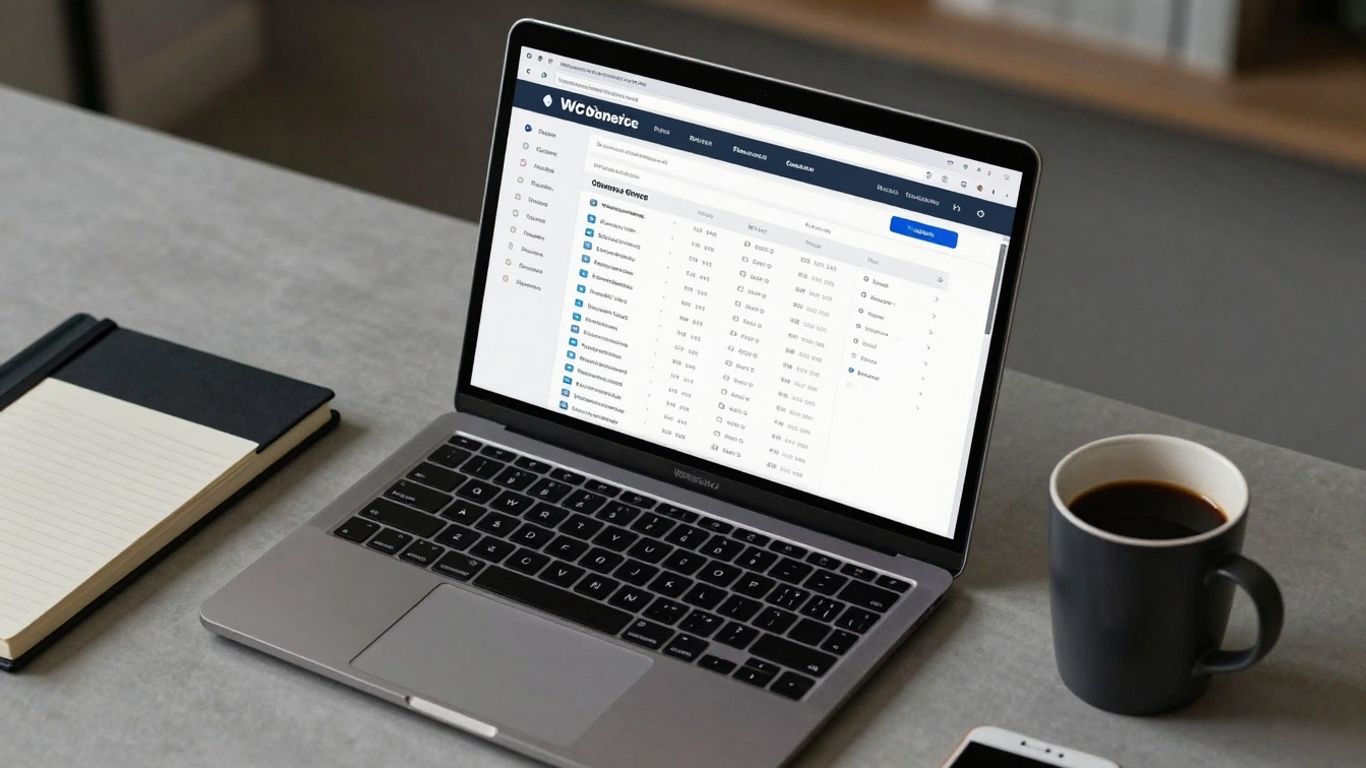
When you first log in and head over to WooCommerce > Orders, you’ll see a big list. Think of it like a dashboard for all your sales. Each line is an order, and it gives you the basics: who bought what, when, and how much they paid. You can actually tweak what info shows up here. Look for ‘Screen Options’ at the top right. Click it, and you can check or uncheck boxes to show or hide columns like the customer’s billing address, the order date, or the total amount. You can also change how many orders appear on a single page. This is your command center for a quick overview.
Here’s a quick look at what you’ll typically see:
- Order: The unique order number and the customer’s name.
- Date: When the order was placed.
- Status: What’s happening with the order (e.g., Processing, Completed, On Hold).
- Billing: The customer’s billing details.
- Total: The final price of the order.
- Action: Any immediate actions needed, like processing a refund.
Filtering and Searching for Specific Orders
Sometimes, you don’t want to scroll through pages of orders. Maybe you need to find that one order from Mrs. Gable from last Tuesday, or you’re looking for all orders that are still ‘Processing’. That’s where filtering and searching come in handy.
- Filtering: At the top of the Orders page, you’ll see options to filter. You can narrow things down by date range, by customer, or by order status. This is super useful for getting a clear picture of specific types of orders.
- Searching: There’s also a search bar, usually in the top right. Just type in an order number or a customer’s name, hit enter, and WooCommerce will pull up matching orders. It’s a quick way to jump straight to what you’re looking for.
Previewing and Editing Individual Orders
Found the order you need? Great. Now you can dig into the details. Clicking on an order number or the customer’s name will take you to the ‘Single Order’ page. This is where you get the full story.
You can see everything: what products were bought, payment details, shipping info, any notes, and the customer’s communication history. From here, you can also change the order’s status. For example, if you’ve just shipped it, you can mark it as ‘Completed’.
If you need to make changes to an order, like correcting a shipping address or adjusting the items, you’ll usually need to set the order status to ‘On Hold’ or ‘Pending Payment’ first. This prevents issues with payment processing or inventory updates while you’re making edits.
On this page, you can:
- Change the order status.
- Edit the items in the order (like quantities or prices, though be careful with this).
- Adjust stock levels if needed.
- Add internal notes or send updates to the customer.
It’s all about having that detailed view to make sure everything is just right before it heads out the door.
Streamlining Order Fulfillment Processes
Getting orders out the door efficiently is a big part of keeping customers happy. It’s not just about shipping; it’s about the whole journey from when a customer clicks ‘buy’ to when that package arrives.
Understanding and Utilizing Order Statuses
WooCommerce gives you a set of default order statuses, and they’re pretty useful for tracking where each order is in the process. Think of them as checkpoints. You’ve got ‘Pending Payment’, ‘Processing’, ‘On Hold’, ‘Completed’, ‘Cancelled’, ‘Refunded’, and ‘Failed’. Each one tells you something important.
- Pending Payment: The order’s in, but we haven’t gotten the money yet. Maybe the customer is still checking out or there was a payment issue.
- Processing: Payment’s confirmed, and we’re getting the order ready to ship. This is where the packing and handling happen.
- On Hold: Similar to pending payment, but this could be for various reasons – maybe we need more info from the customer or there’s a stock issue we’re sorting out.
- Completed: The order’s been processed and shipped. Hooray!
- Cancelled: The order’s been called off, either by you or the customer.
- Refunded: The customer got their money back.
- Failed: The payment didn’t go through. Oops.
Using these statuses correctly means you and your team always know what needs attention. It helps avoid confusion and makes sure no order gets forgotten.
Modifying Order Details and Items
Sometimes, things change after an order is placed. Maybe a customer realizes they ordered the wrong size, or you notice a typo in the shipping address. WooCommerce lets you edit these details. You can change quantities, add or remove products (though this can affect pricing and inventory), update shipping and billing addresses, and even adjust shipping methods. It’s important to do this carefully, especially if payment has already been processed, as you might need to handle refunds or additional payments.
For example, if a customer wants to swap a blue shirt for a red one, you can edit the order to reflect that. If they want to add another item, you’ll need to update the total cost and potentially charge them the difference. This flexibility is key to handling those real-life order hiccups without having to cancel and restart everything.
Adding Custom Notes and Meta Fields
Beyond the standard order details, you can add notes. These are super handy for internal communication or for leaving messages for the customer. Internal notes are just for your team – maybe a reminder to check a specific item or a note about a customer’s previous order. Customer notes appear on the customer’s order history page and in their emails, so you can let them know about shipping delays or confirm special instructions.
Sometimes, you might need to track information that doesn’t fit into the standard fields. This is where custom meta fields come in. While not a default feature for all order data, developers can add custom fields to store specific details relevant to your business, like a unique client ID or a special handling instruction that needs to be visible to your warehouse team.
These additions help keep all the relevant information tied directly to the order, making it easier to manage and fulfill correctly.
Enhancing Customer Communication and Tracking

Keeping your customers in the loop about their orders is a big deal. It builds trust and makes them feel good about shopping with you. When people know what’s happening with their purchase, they’re less likely to get anxious or contact support with simple questions.
Leveraging Order Notes for Customer Updates
WooCommerce has a built-in notes feature that’s super handy. You can use private notes for your team to keep track of internal details about an order. But you can also add notes that are visible to the customer. Think of it as a little message board just for that specific order. If there’s a slight delay, or if you need to confirm something with the customer, you can pop a note in there. This simple step can prevent a lot of confusion.
Here’s how you can use customer-facing notes:
- Confirming details: If you need to double-check a shipping address or a product variation, add a note asking for clarification.
- Providing updates: If a product is backordered, you can let the customer know directly through a note.
- Adding extra info: Maybe you want to include care instructions for a handmade item or a special thank you message.
Automating Order Status Notifications
Manually sending emails for every single status change is a pain, right? Luckily, WooCommerce can do a lot of this automatically. When an order moves from ‘Processing’ to ‘Completed’, for example, an email can be sent out without you lifting a finger. You can customize these emails to match your brand’s voice.
Here are the common automated notifications:
- New Order: Sent to the admin when a new order comes in.
- Processing Order: Sent to the customer when the order is being prepared.
- Completed Order: Sent to the customer when the order has been shipped.
- Customer Invoice: Includes order details and payment information.
- Reset Password: For customers who need to reset their account password.
While WooCommerce offers a good starting point for automated emails, many stores find that using a dedicated plugin allows for much more control over the timing, content, and even the channels of these communications. This can mean sending SMS alerts or more detailed updates.
Providing Order Tracking Information
Customers love being able to track their packages. It gives them peace of mind and lets them know when to expect their delivery. You can add tracking numbers and carrier information directly to an order in WooCommerce. Once you do this, the customer will usually receive an email with a link to track their package.
To add tracking info:
- Go to WooCommerce > Orders.
- Click on the order you want to update.
- Scroll down to the ‘Order details’ section.
- Find the ‘Shipping tracking’ meta box.
- Enter the carrier name and tracking number.
- Click ‘Update order’.
This feature is a real game-changer for customer satisfaction. It shows you’re organized and care about their experience even after they’ve paid.
Optimizing Order Management Workflows
Getting your order process running smoothly is key to keeping customers happy and your business running efficiently. It’s not just about getting orders out the door; it’s about how you manage the whole thing from start to finish. We’re talking about making things faster, clearer, and less prone to mistakes.
Implementing Streamlined Communication Strategies
Clear communication is like the oil that keeps the gears of your order management turning without a hitch. When everyone involved knows what’s going on, things just get done better. This means keeping your team in the loop and making sure your customers feel informed too.
- Internal Team Updates: Use the built-in notes feature in WooCommerce to leave messages for your team about specific orders. This could be anything from a special request from the customer to a note about a stock issue. It keeps a record right there with the order.
- Customer Notifications: Make sure customers get updates when their order status changes. A simple email saying "Your order has shipped" goes a long way. You can even add tracking links directly into these emails.
- Centralized Communication Tools: For larger teams, consider using a chat app like Slack. You can create channels for order processing or specific customer issues, making it easy to ask questions and get quick answers without digging through emails.
Good communication prevents misunderstandings. When your team knows the details and your customers are kept in the loop, you avoid a lot of headaches down the line. It builds trust and makes the whole experience better for everyone.
Empowering Customers with Self-Service Options
Letting customers help themselves can really cut down on the number of questions your support team has to answer. It also means customers can get information or take action whenever they want, not just when you’re available.
- Detailed FAQs: Have a well-organized Frequently Asked Questions page that covers common issues related to ordering, shipping, and returns. This is often the first place customers look for answers.
- Order Tracking Portal: Provide a clear link on your website where customers can enter their order number and email to see the current status and tracking information for their purchase.
- Easy Returns Process: Make your return policy clear and provide a simple way for customers to initiate a return online, perhaps through a form or a dedicated section in their account.
Embracing Automation for Efficiency
Automation is where you really start to save time and reduce errors. By setting up systems to handle repetitive tasks, your team can focus on more important things, like handling complex orders or improving customer service.
- Automated Status Updates: Set up WooCommerce to automatically send an email to the customer when an order status changes. For example, when you mark an order as ‘Shipped’, an email with tracking details can be sent out automatically.
- Inventory Syncing: If you use separate inventory software, make sure it’s connected to WooCommerce. This way, when an item sells, the stock level updates automatically, preventing you from selling something you don’t have.
- Email Marketing Integration: Connect your order data to your email marketing platform. This allows you to automatically send follow-up emails, request reviews after delivery, or even offer discounts on future purchases based on past orders.
The goal is to create a system where orders flow through with minimal manual intervention, freeing up your time and resources. This makes your business more scalable and less dependent on constant manual oversight.
Advanced WooCommerce Order Management Techniques
So, you’ve got the basics down, and your orders are flowing. But what happens when things get a bit more complicated? That’s where advanced techniques come in. We’re talking about handling the tricky stuff like refunds, making sure payments go through smoothly, and figuring out the best way to ship everything out.
Handling Refunds and Returns Effectively
Returns and refunds are a part of doing business online. WooCommerce gives you the tools to manage these, but sometimes you need a bit more. Setting up a clear policy is the first step. Then, you can use WooCommerce’s built-in features to process refunds. For more complex situations, or if you want to automate parts of the process, plugins can really help. They can streamline how you track return requests, manage restocking, and issue refunds, saving you a lot of headaches.
- Define a clear return and refund policy. This should be easily accessible to your customers.
- Utilize WooCommerce’s refund options within the order details screen.
- Consider plugins for automated return management and restocking.
- Keep detailed records of all refunds and returns for accounting purposes.
Integrating Payment Gateways Seamlessly
Getting paid is pretty important, right? WooCommerce supports a bunch of payment gateways, but managing them can sometimes be a chore. You want to make sure customers have options they trust, and that the integration is smooth. This means checking that transactions are recorded correctly and that any issues are easy to spot. Sometimes, you might need to connect with multiple gateways to serve different customer needs or regions. Choosing reliable payment gateways that work well with WooCommerce is key.
Managing Shipping and Fulfillment Options
Shipping can get complicated fast. You’ve got different carriers, varying costs, and the need to get orders out the door accurately and on time. WooCommerce has basic shipping options, but for more advanced needs, like real-time carrier rates or complex shipping rules, plugins are your best friend. These tools can help you calculate shipping costs more precisely, print labels in bulk, and even manage fulfillment centers if your business grows. It’s all about finding a system that fits your shipping volume and complexity.
Efficient shipping and fulfillment aren’t just about getting products to customers; they’re a major part of the customer experience. A smooth process builds trust and encourages repeat business.
Leveraging Plugins for Superior Order Management
WooCommerce itself gives you a decent starting point for managing orders, but let’s be real, it’s not always enough, especially as your business grows. You hit a point where the built-in features just don’t cut it anymore. That’s where plugins come in. They’re like adding specialized tools to your toolbox, letting you do more with your order data and processes.
Choosing the Right Order Management Plugin
When you start looking for plugins, you’ll see a bunch of options. They tend to fall into a few categories. Some focus on making the main orders screen in your WordPress admin look better and work faster. Others let you add custom order statuses, which is super handy if your workflow is a bit unique. Then there are plugins that beef up how you talk to your customers about their orders, and of course, ones that make exporting your order data way more flexible. Finding the plugin that fits your specific needs is key to avoiding clutter and actually improving things.
Here’s a quick breakdown of what to look for:
- Dashboard Improvements: Plugins that add more columns, better filtering, and quicker editing directly in the orders list. This makes it easier to see what’s going on at a glance.
- Custom Statuses: If ‘Processing’ or ‘Completed’ just doesn’t cover it, you can add statuses like ‘Awaiting Quality Check’ or ‘Shipped to Local Hub’.
- Communication Tools: Better email notifications, SMS alerts, or even ways to integrate with chat apps.
- Export Functionality: The ability to pull out exactly the data you need, in the format you need it, for accounting or marketing.
The default WooCommerce order management system is a good start, but it has limits. You might find yourself wishing for more ways to sort, filter, or edit orders in bulk. Plugins are designed to fill these gaps, giving you more control and saving you time.
Enhancing Order Export Functionality
Exporting order data is a big one. Maybe you need to send specific sales reports to your accountant, or perhaps you want to analyze customer purchase history for marketing. The default WooCommerce export can be a bit basic. Plugins can change that. They often let you pick exactly which fields you want to include, apply filters to narrow down the data (like only exporting orders from a specific date range or for a particular product), and even handle exporting a huge number of orders without crashing your site. This kind of flexibility is a game-changer for data analysis and reporting. You can get your order data into a format that works for you much more easily.
Customizing Order Statuses and Notifications
Think about your order process. Does it perfectly match the standard WooCommerce statuses? Probably not. You might have steps like ‘Quality Control’ or ‘Packaging’ that are important for your team but invisible to the customer. Plugins allow you to create these custom statuses. This not only helps your internal team track orders more accurately but also lets you set up specific email notifications for each stage. So, a customer could get an email when their order moves from ‘Processing’ to ‘Awaiting Shipment’, giving them peace of mind. It’s about making the order journey clearer for everyone involved.
Wrapping Up Your WooCommerce Order Management
So, we’ve gone over a lot of ground about handling orders in WooCommerce. It might seem like a lot at first, but really, it’s all about getting organized and using the tools you have. Whether you’re sticking with what WooCommerce gives you or looking into plugins to make things even smoother, the main goal is to keep your customers happy and your business running without a hitch. Getting this part right makes a big difference, and hopefully, this guide has given you a clearer picture of how to do just that. Keep practicing, and you’ll get the hang of it in no time.
Frequently Asked Questions
What is WooCommerce order management?
WooCommerce order management is like being the boss of all the orders that come into your online store. It means keeping track of what people buy, making sure you have enough stuff, getting it ready to send, and telling the customer what’s happening with their order. It’s all about making sure things run smoothly from when someone clicks ‘buy’ to when they get their package.
How do I see all my orders in WooCommerce?
It’s pretty simple! Just go to your WordPress dashboard, click on ‘WooCommerce,’ and then click on ‘Orders.’ This will show you a big list of all the orders your store has received. You can see important details like who ordered what, when they ordered it, and what the status of the order is.
Can I change details on an order after it’s placed?
Yes, you can! If you need to fix something or add information to an order, you can click on the specific order in your list. This will open up the order details page where you can edit things like the customer’s address, the items they ordered, or add notes for your team or the customer.
How do I let customers know what’s happening with their order?
WooCommerce helps you keep customers in the loop. You can change the ‘order status’ (like ‘processing’ or ‘shipped’) and the system can automatically send emails to the customer. You can also add notes to an order that customers can see, which is great for sharing tracking numbers or letting them know about any changes.
What are order statuses and why are they important?
Order statuses are like checkpoints for an order. They show you where an order is in the process, such as ‘On Hold,’ ‘Processing,’ ‘Completed,’ or ‘Refunded.’ Using these statuses helps you and your team stay organized, know what needs to be done next, and makes it easy to see the progress of each order at a glance.
Can I add extra features to manage my orders better?
Absolutely! While WooCommerce has good basic tools, many people use special add-ons called ‘plugins’ to make order management even better. These plugins can help with things like exporting order data easily, creating custom order statuses, or improving how you communicate with customers.