If you’re running a WooCommerce store, you might need to offer tax exemptions to certain customers. This is especially true for wholesalers, non-profits, and government entities. Setting up these exemptions can be tricky, but it’s essential for compliance and customer satisfaction. In this guide, I’ll walk you through the steps to set up WooCommerce tax exempt options for your online store, making it easier for qualifying customers to shop without added tax burdens.
Key Takeaways
- WooCommerce allows you to set tax exemptions for specific customers and user roles.
- Tax exemptions are beneficial for wholesalers, non-profits, and government entities.
- You can create a tax exemption form for customers to submit their exemption requests.
- Managing tax exemptions helps maintain compliance with local tax regulations.
- Common issues with tax exemptions can often be resolved by checking user roles and plugin settings.
Understanding WooCommerce Tax Exempt Options

What Is WooCommerce Tax Exempt?
WooCommerce tax exempt functionality allows you to remove sales tax from orders for specific customers. This is particularly useful if you sell to wholesalers, non-profit organizations, or other entities that are legally exempt from paying sales tax. When a customer is marked as tax-exempt, they won’t be charged taxes on their purchases, regardless of the tax rates you’ve set up. This simplifies the purchasing process and ensures compliance with tax regulations. It’s a pretty important feature if you’re dealing with business customers or organizations that don’t have to pay sales tax.
Benefits of Tax Exemptions for Customers
Offering tax exemptions can significantly improve the customer experience for eligible buyers. Here’s why:
- Reduced Costs: Tax-exempt customers don’t have to pay sales tax, which lowers their overall purchasing costs.
- Simplified Transactions: The checkout process is streamlined because taxes are automatically removed.
- Increased Satisfaction: Customers appreciate not being charged taxes they aren’t required to pay.
Tax exemptions can be a big deal for certain customers. It’s not just about saving money; it’s about making the whole buying process easier and more pleasant for them. This can lead to increased loyalty and repeat business.
Common Scenarios for Tax Exemptions
Several types of customers commonly qualify for tax exemptions:
- Wholesalers and Resellers: Businesses that purchase goods for resale are often exempt from sales tax. They’ll collect the sales tax when they sell to the end consumer.
- Non-Profit Organizations: Charities, religious institutions, and educational organizations may be exempt from paying taxes on certain purchases. Tax Exempt status can be granted after they provide the required documentation.
- Government Entities: Federal, state, and local government agencies are typically exempt from sales tax.
These exemptions are based on legal status or the nature of the purchases. If you don’t use a plugin that allows qualifying customers to manually or automatically remove tax at the checkout, then you are losing sales, customers, and future revenue.
Setting Up Basic Tax Settings
Alright, let’s get into the nitty-gritty of setting up basic tax settings in WooCommerce. It might seem daunting, but trust me, once you get the hang of it, it’s pretty straightforward. We’ll walk through the essential steps to get your store compliant and ready to handle taxes like a pro.
Navigating WooCommerce Tax Settings
First things first, you need to find the tax settings. In your WordPress dashboard, go to WooCommerce and then click on "Settings." You’ll see a bunch of tabs at the top; click on the one labeled "Tax." This is where all the magic happens. It’s the control panel for all things tax-related in your store. Take a moment to familiarize yourself with the layout.
Configuring General Tax Options
Okay, now that you’re in the tax settings, let’s configure the general options. Here’s what you’ll typically see:
- Enable Taxes: Make sure this box is checked! If it’s not, WooCommerce won’t calculate any taxes at all. Pretty important, right?
- Prices Entered with Tax: This is a big one. Decide whether you’re going to enter product prices including tax or excluding tax. If you choose "Yes, I will enter prices inclusive of tax," you’ll need to factor in the tax when you set your prices. If you choose "No, I will enter prices exclusive of tax," WooCommerce will add the tax on top of your product prices at checkout.
- Calculate Tax Based On: This setting determines where WooCommerce gets the customer’s address for tax calculation. You can choose the customer’s shipping address, billing address, or your store’s base address. Usually, shipping address is the way to go.
- Shipping Tax Class: This lets you choose which tax class applies to shipping costs. Usually, it’s the same as your standard tax rate, but you might need to adjust it based on your local laws.
- Rounding: Enable this to round tax at the subtotal level, instead of per line. This can help avoid discrepancies.
- Additional Tax Classes: Here, you can add extra tax classes if you sell products that require different tax rates. For example, you might have a reduced tax rate for certain food items.
- Display Prices in the Shop: This setting controls how prices are displayed on your product pages and in your catalog. You can choose to display prices including tax or excluding tax.
- Display Prices During Cart and Checkout: Similar to the previous setting, but this controls how prices are displayed during the cart and checkout process. Consistency is key here!
- Price Display Suffix: This lets you add a little note next to the price, like "(incl. tax)" or "(excl. tax)." This can help avoid confusion for your customers.
- Display Tax Totals: Choose whether to display tax as a single total or itemized. Itemized is usually better for transparency.
Getting these settings right is super important. If you’re not sure about something, it’s always a good idea to consult with a tax professional. They can help you make sure you’re compliant with all the relevant laws and regulations.
Adding Standard Tax Rates
Now that you’ve configured the general tax options, it’s time to add your standard tax rates. Click on the "Standard rates" subtab at the top of the Tax settings page. Here, you’ll see a table where you can enter your tax rates. Click "Insert row" to add a new tax rate. You’ll need to fill in the following information:
- Country Code: Enter the two-letter country code for the country where the tax rate applies (e.g., "US" for the United States). You can leave this blank to apply the rate to all countries.
- State Code: Enter the two-letter state code for the state where the tax rate applies (e.g., "CA" for California). You can leave this blank to apply the rate to all states.
- Postcode / ZIP: Enter the postcode or ZIP code where the tax rate applies. You can use wildcards () to match multiple postcodes (e.g., "90210" for all ZIP codes starting with 90210). You can leave this blank to apply the rate to all postcodes.
- City: Enter the city where the tax rate applies. You can leave this blank to apply the rate to all cities.
- Rate %: Enter the tax rate as a percentage (e.g., "6" for 6%).
- Tax Name: Enter a name for the tax rate (e.g., "Sales Tax").
- Priority: This determines the order in which tax rates are applied. Lower numbers have higher priority. If you have multiple tax rates that apply to the same location, the one with the highest priority will be applied first.
- Compound: Check this box if the tax rate is compound (i.e., applied on top of other taxes). WooCommerce offers an automatic sales tax calculation feature that determines the appropriate tax based on the customer’s shipping address and the configured tax rates.
- Shipping: Check this box if the tax rate applies to shipping costs.
Repeat this process for each tax rate that applies to your store. Once you’re done, click "Save changes." And that’s it! You’ve successfully set up basic tax settings in WooCommerce.
Creating Tax Exempt User Roles
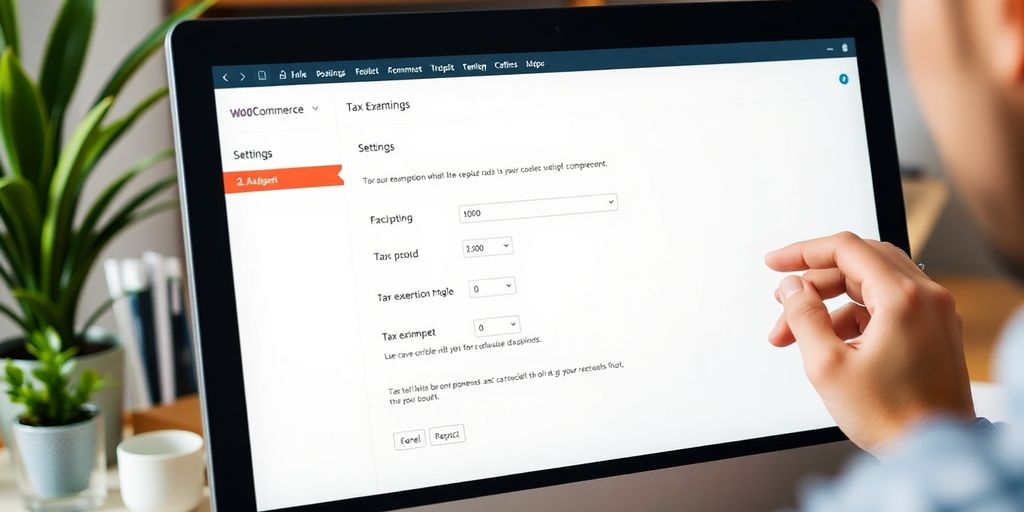
It’s pretty common to need to exempt certain users from taxes, especially if you’re dealing with wholesalers, non-profits, or other specific types of customers. WooCommerce doesn’t have this built-in, but there are ways around it. Let’s explore how to set up tax-exempt user roles in your WooCommerce store.
Defining User Roles for Tax Exemption
First, you need to figure out which user roles should be tax-exempt. Common examples include wholesalers, resellers, or members of non-profit organizations. Once you know who needs the exemption, you can create or modify user roles to reflect this. WordPress has default roles, but you might need to create custom ones for more specific control. This ensures that only designated users receive the tax benefits.
Using WooCommerce Wholesale Pro
One of the easiest ways to manage tax exemptions for user roles is by using a plugin like WooCommerce Wholesale Pro. This plugin lets you create unlimited user roles and easily set tax exemptions for each one. It also comes with a bunch of other useful features, like advanced pricing and discount rules. It’s a solid option if you need more than just basic tax exemption functionality. It simplifies the process of customize tax exemptions for different roles.
Assigning Tax Exempt Status to Users
Once you have your user roles set up, you need to assign the tax-exempt status. If you’re using a plugin, this is usually done through the user’s profile in the WordPress admin area. You simply select the appropriate user role, and the plugin handles the rest. For manual methods, you might need to use code snippets or other workarounds to achieve the same result. This step ensures that the correct users are properly marked as tax-exempt.
Making sure your tax exemptions are set up correctly is super important. Always double-check your settings and test the checkout process to confirm that taxes are being applied (or not applied) as expected. It’s also a good idea to keep records of who is tax-exempt and why, just in case you ever need to provide documentation.
Here’s a quick list of things to consider:
- Identify which user roles need tax exemptions.
- Create or modify user roles as needed.
- Use a plugin or manual method to assign tax-exempt status.
- Test the checkout process to verify the settings.
- Keep accurate records of tax-exempt users.
Implementing a Tax Exemption Form
Having a tax exemption form on your WooCommerce store can really streamline the process of handling tax-exempt customers. It makes things easier for both you and your customers, providing a clear way to request and manage exemptions. Let’s walk through how to set one up.
Customizing the Tax Exemption Form
First, you’ll want to create a form where customers can submit their tax exemption information. This form should include all the necessary fields for collecting relevant data, such as their tax ID, business name, and reason for exemption. You can customize the form to match your store’s branding and collect any specific information you need. Many plugins offer customizable fields, allowing you to tailor the form to your exact requirements. For example, you might want to include:
- Text fields for business name and tax ID.
- A file upload field for tax exemption certificates.
- A dropdown menu for selecting the reason for exemption.
Make sure the form is easy to understand and use. Clear instructions and labels will help customers fill it out correctly, reducing errors and support requests.
Enabling Form Submission on My Account Page
Next, you need to make the form accessible to your customers. A common approach is to embed the form on the My Account page. This provides a centralized location where customers can manage their account details, including tax exemption status. Some plugins will automatically add the form to this page, while others may require you to manually insert it using a shortcode or widget. Displaying the tax exemption form in the "My Account" page makes it easy for customers to submit their details and upload any required documentation.
Reviewing and Approving Exemption Requests
Once customers start submitting forms, you’ll need a system for reviewing and approving these requests. Ideally, your chosen plugin should provide a dashboard where you can view all submitted forms, along with the customer’s information and uploaded documents. Here’s a basic workflow:
- Receive a notification when a new form is submitted.
- Review the customer’s information and uploaded documents.
- Verify the information against your records or relevant databases.
| Status | Action |
|---|---|
| Pending | Review and verify the information. |
| Approved | Grant tax exemption status to the user. |
| Disapproved | Notify the user of the rejection. |
After reviewing, you can approve or disapprove the request. If approved, the customer’s account should be automatically updated to reflect their tax-exempt status. You might also want to send an email notification to inform them of the approval. If disapproved, provide a clear explanation of why the request was rejected, so they can correct any issues and resubmit the form. You can also set up WooCommerce shipping taxes to be automatically calculated for non-exempt customers.
Managing Tax Exemptions for Different Customer Types
It’s important to handle tax exemptions correctly for different types of customers. Each group has its own rules and requirements, so a one-size-fits-all approach won’t work. You need to tailor your WooCommerce setup to accommodate wholesalers, non-profits, and government entities properly. This ensures compliance and keeps everyone happy.
Wholesalers and Resellers
Wholesalers and resellers buy products to resell them, so they usually qualify for tax exemptions. The key is verifying their reseller status. You’ll need to collect the right documentation, like a resale certificate or tax ID. Once verified, you can assign them a user role that automatically applies the tax exemption at checkout. It’s also a good idea to periodically review these certificates to make sure they’re still valid. This helps avoid any issues down the line.
Non-Profit Organizations
Non-profit organizations often have tax-exempt status, but it’s not automatic. You’ll need to see proof of their non-profit status, such as their 501(c)(3) determination letter (in the US). Once you have that, you can set up a specific user role for them in WooCommerce. This role will remove taxes from their orders. Make sure to keep copies of their documentation for your records. It’s also worth noting that some states have specific rules about what non-profits can purchase tax-free, so be aware of local regulations. You can manage dropshipping taxes with confidence by understanding these rules.
Government Entities
Government entities, like schools or local government offices, are typically tax-exempt. However, you still need to verify their status. Often, a purchase order or a letter on official letterhead is enough. Create a user role specifically for government entities in WooCommerce. This will ensure their orders are tax-free. Keep in mind that different levels of government (federal, state, local) might have slightly different rules, so it’s good to be aware of those nuances.
Handling tax exemptions for different customer types can be tricky, but it’s essential for compliance and customer satisfaction. Make sure you have a clear process for verifying their status and applying the correct exemptions. Keep good records of all documentation and stay up-to-date on local tax laws. This will help you avoid any problems and keep your business running smoothly.
Ensuring Compliance with Tax Regulations
It’s easy to get caught up in the excitement of setting up tax exemptions, but don’t forget the boring (but important) stuff! Making sure you’re following all the rules is key to avoiding headaches down the road. Tax laws can be tricky, and they change, so staying informed is a must.
Understanding Local Tax Laws
Tax laws aren’t the same everywhere. What’s okay in one state (or country) might not be in another. You need to know the specific rules that apply to your business and your customers. This means doing some research or talking to someone who knows their stuff. For example, EU VAT exemption rules are different from those in the US. Don’t assume anything – always double-check!
Maintaining Accurate Records
Keep detailed records of everything. This includes tax exemption certificates, who you’ve granted exemptions to, and any communication you’ve had about tax stuff. Think of it as creating a paper trail (or a digital one) that shows you’re doing things right. If you ever get audited, these records will be your best friend. Make sure to collect all the necessary fields to accept customers’ tax exemption details – customer’s name, business name, certificate number, expiration date, issuing authority, etc. — on the registration form. This ensures you have the necessary documentation on hand to verify the EIN tax exemption requests.
Consulting with Tax Professionals
If taxes make your head spin, don’t be afraid to ask for help. A tax professional can give you advice that’s specific to your business. They can also help you stay up-to-date on any changes to the tax laws. It might cost you some money, but it could save you a lot more in the long run.
It’s always a good idea to get a second opinion, especially when it comes to taxes. Tax pros can help you navigate the complexities and make sure you’re not missing anything important.
Troubleshooting Common Tax Exemption Issues
Tax exemptions can sometimes be tricky. Let’s look at some common problems and how to fix them.
Identifying Common Problems
So, you’ve set up tax exemptions, but things aren’t working as expected? Don’t worry, it happens. Here are a few common issues:
- Customers are still being charged tax even after approval.
- The tax exemption form isn’t showing up on the "My Account" page.
- You’re getting errors when trying to approve or deny exemption requests.
- Tax isn’t being fully removed. For example, you might want to exclude state tax but keep federal tax, which isn’t possible with basic WooCommerce settings.
The first step is always to identify the root cause. Is it a configuration issue, a plugin conflict, or something else?
Resolving User Role Conflicts
User roles can sometimes cause conflicts with tax exemptions. For example, a user might have multiple roles assigned, and one of those roles might be overriding the tax exemption status. Here’s how to tackle this:
- Check the user’s assigned roles. Make sure they only have the roles they need.
- If using a plugin for user role management, review the plugin’s settings to ensure there are no conflicting rules.
- Test different role combinations to see if you can isolate the conflict.
It’s a good idea to create a test user account with the problematic role combination to troubleshoot without affecting real customers.
Ensuring Proper Plugin Configuration
Plugins are great, but they can also be a source of problems. If you’re using a plugin to manage tax exemptions, make sure it’s configured correctly. Sometimes, faulty plugins can disrupt tax and currency calculations.
- Double-check all the plugin settings. Are the tax rates set up correctly? Is the plugin enabled for the correct user roles?
- Make sure the plugin is compatible with your version of WooCommerce. Outdated plugins can cause all sorts of issues.
- Try deactivating other plugins one by one to see if there’s a conflict. This can help you identify the culprit.
If you’re still stuck, check the plugin’s documentation or contact the developer for support. They might have specific troubleshooting steps for common issues.
Wrapping It Up
Setting up tax exemptions in WooCommerce can really make a difference for your business. It helps you cater to customers who shouldn’t be paying sales tax, like wholesalers or non-profits. Plus, it keeps things simple for everyone involved. Just remember to check your local tax laws to stay compliant. With the right tools, like the WooCommerce Wholesale Pro plugin, you can easily manage who gets tax exemptions and streamline the checkout process. So, take the time to set this up properly, and you’ll likely see happier customers and smoother transactions.
Frequently Asked Questions
What does it mean to have a tax-exempt status in WooCommerce?
Tax-exempt status in WooCommerce means that certain customers can buy products without paying sales tax. This is helpful for people or organizations that don’t have to pay taxes on their purchases.
Why would customers want to be tax-exempt?
Customers may want to be tax-exempt because they are wholesalers, non-profits, or government agencies. These groups often don’t have to pay sales tax on their purchases.
How do I set up tax exemptions in WooCommerce?
To set up tax exemptions, go to the WooCommerce settings, adjust the tax options, and use a plugin like WooCommerce Wholesale Pro to create tax-exempt roles.
Can I create different tax-exempt roles for different customers?
Yes! You can create different roles for tax exemptions using plugins that allow you to customize which users are exempt from paying taxes.
What kind of form do I need for tax exemptions?
You need a tax exemption form that customers can fill out to request their tax-exempt status. This form can be added to their account page on your store.
How can I ensure my tax exemption process follows the law?
To ensure compliance, it’s important to understand local tax laws, keep accurate records, and consult with tax experts when needed.